
How to Turn Off Proxy Server on iPhone
Most guides on how to turn off proxy server on iPhone show you one thing: go to Wi-Fi settings and tap Off. That works – sometimes. But if the proxy keeps coming back, certain apps still route through it, or the toggle is greyed out entirely, you are dealing with something more complex than a simple user-level setting.
This guide covers every scenario: manual proxies, PAC scripts, MDM-pushed configurations, and per-app network behavior. Understanding what type of proxy is active on your device is the prerequisite to disabling it correctly.
Why There Is More Than One Way a Proxy Gets Enabled on iPhone
iOS supports three distinct proxy configuration modes, each applied differently and requiring a different removal method. Conflating them is the reason most troubleshooting attempts fail.
The first mode is manual proxy, where a user or app explicitly enters a host and port inside Wi-Fi settings. The second is automatic proxy configuration via a PAC (Proxy Auto-Config) file URL – a JavaScript file that tells iOS which requests to proxy and which to send directly. The third is a configuration profile installed through MDM (Mobile Device Management), which can push proxy rules silently and lock them from user modification.
Each of these leaves a different footprint and requires a different removal step. The table below maps each type to its source and the correct disable method.
How to Turn Off a Manual Proxy Server on iPhone
If the proxy was configured manually – the most common case for individual users – the removal process is straightforward but must be completed per network. iOS stores proxy settings at the SSID level, not globally, which means disabling the proxy on one Wi-Fi network does not affect any other.
Step-by-Step for Wi-Fi Proxy Removal
Open the Settings app and tap Wi-Fi. Find the network you are currently connected to and tap the info icon (ⓘ) to the right of its name. Scroll down to the HTTP Proxy section. If it reads Manual or Automatic, tap it and select Off. Tap the back arrow to save – there is no explicit save button; navigating away commits the change.
At this point, all outgoing requests from that network will route directly without any intermediary. You will need to repeat this for every saved network that has a proxy configured, since iOS does not provide a global proxy off switch in the standard settings interface.
Disabling a PAC Script Proxy on iPhone
When the Automatic option is selected in Wi-Fi proxy settings, iOS fetches a PAC file from the URL listed in that field. The PAC file itself – a JavaScript function – decides routing logic on a per-request basis. Disabling it requires the same path as the manual method: Settings → Wi-Fi → (network info) → HTTP Proxy → Off.
The distinction matters because a PAC URL can route only specific traffic through a proxy while allowing everything else to pass directly. If you notice selective routing behavior – some apps seem unaffected while others clearly tunnel through a proxy – a PAC script is almost certainly the active configuration. Simply setting proxy to Off removes the PAC URL and restores direct routing.
When the Proxy Setting Is Greyed Out or Keeps Returning
This is where most users get stuck. If you cannot modify proxy settings, or they revert after a reboot, a configuration profile is the cause. Configuration profiles are XML files distributed via MDM systems (common in corporate and education environments) that can enforce proxy rules at a level below what a user can override.
How to Check for Installed Configuration Profiles
Navigate to Settings → General → VPN & Device Management. Any installed profile will appear here. Tap on a profile to inspect what it controls – look for a Proxy section. If a profile is enforcing proxy settings, removing the profile will remove its network rules along with it.
Tap the profile, then tap Remove Management or Delete Profile and authenticate with your passcode. Once removed, the associated proxy configuration is gone. However, on supervised devices (fully managed by an MDM), the Remove option may not appear. In that case, the device admin must push a policy update to remove or modify the proxy rule – there is no user-side workaround.
Proxy Behavior on Cellular vs. Wi-Fi
It is worth clarifying a significant iOS limitation: there is no native user interface for configuring proxy settings on cellular (mobile data) connections. The standard Settings → Cellular path does not expose an HTTP proxy option. If traffic on cellular appears to be proxied, this is almost always the result of an MDM-pushed profile or an APN configuration applied by a carrier.
Resetting network settings (Settings → General → Transfer or Reset iPhone → Reset Network Settings) will clear most network-layer configurations including APN overrides and any user-side Wi-Fi proxy entries, but MDM-pushed profiles survive a network settings reset. A full device reset is required to remove MDM enrollment, and even then, supervised devices may automatically re-enroll.
Verifying the Proxy Is Truly Off
After removing a proxy, verify actual traffic behavior before assuming the change took effect. The simplest method is to check your device's external IP address from a mobile browser. If the address matches your router's WAN IP (visible in your router's admin panel), traffic is routing directly. A mismatch – particularly an IP in a different city or country – indicates a proxy or routing policy is still in effect.
For more granular verification, tools like Charles Proxy running on a connected Mac, or a network packet capture via Xcode's developer instruments, will show exactly where requests are terminating. This level of inspection is rarely needed for personal devices but becomes relevant in automation, testing, and scraping pipelines where proxy state directly affects data integrity.
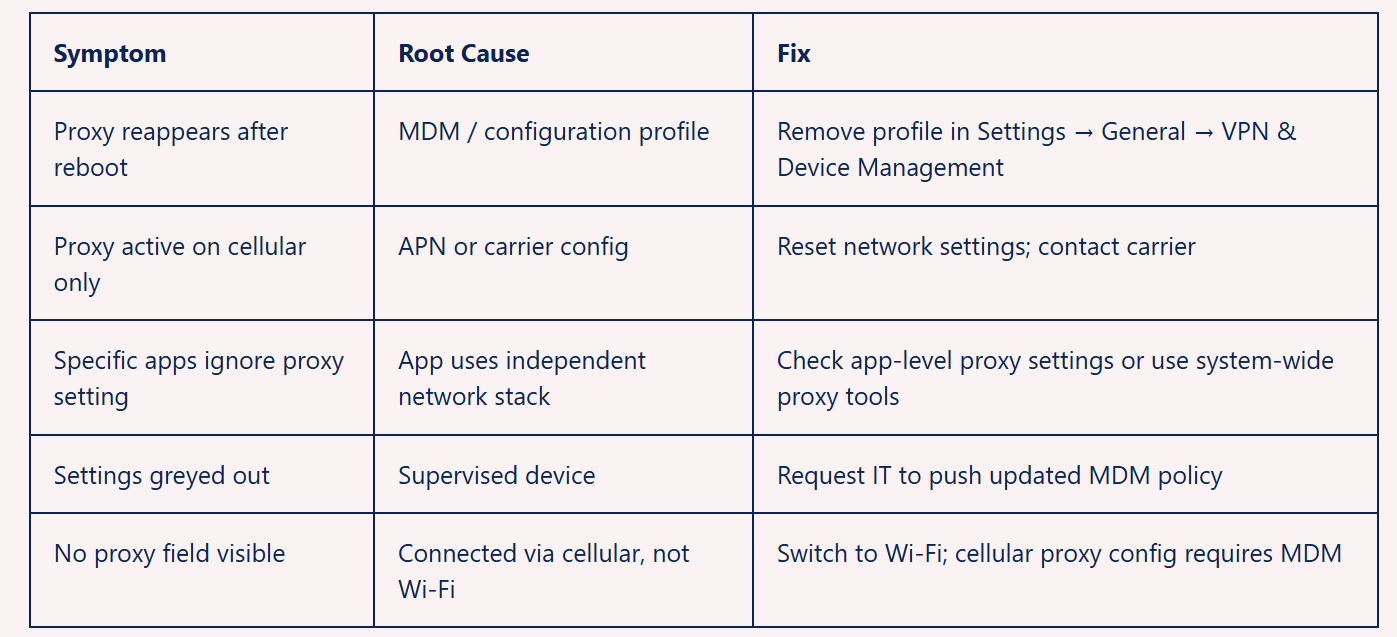
Proxy Troubleshooting Reference
The following table covers the most common failure modes engineers and power users encounter when trying to disable proxy settings on iPhone, along with the correct resolution path.
Understanding Proxy Configuration in Professional Contexts
For developers and analysts running automation or data collection pipelines through iOS devices, proxy control is not a one-time task – it is part of the network configuration lifecycle. In a testing environment, for example, you may need to route specific device traffic through a local proxy for inspection, then remove that configuration when moving to production.
The key conditions to verify in any professional proxy workflow are:
• The proxy is scoped to the correct SSID and does not affect other saved networks
• No configuration profile is overriding user-level settings
• Cellular traffic is accounted for separately, as it cannot be proxied via standard UI
• Verification of external IP confirms the proxy state matches the intended configuration
Choosing a Reliable Proxy Infrastructure for Testing and Data Workflows
The quality of proxy infrastructure matters significantly when building systems that depend on stable, predictable routing. For teams running scraping, ad verification, or SEO monitoring workflows, an unreliable proxy layer creates noise that is difficult to distinguish from actual application errors. Providers that maintain clean IP pools, low latency, and consistent uptime such as Proxys.io give engineers a controlled variable to work with, rather than a source of failure. When the proxy layer behaves predictably, debugging shifts from network diagnosis back to application logic where it belongs.
For workflows requiring location-specific routing across multiple geographies, a provider with broad coverage across residential, datacenter, and mobile IP types gives you the flexibility to simulate different network environments without maintaining separate physical infrastructure.
Proxy Configuration Management at Scale
When managing proxy settings across multiple devices – whether for QA fleets, automation rigs, or multi-device testing environments – the per-SSID limitation of iOS becomes a meaningful operational constraint. MDM remains the only scalable solution for pushing and removing proxy configurations across a device fleet. For teams that have not yet structured their iOS device management this way, our guide on configuring proxy settings for automated workflows covers the MDM policy structure and PAC file design patterns that make fleet-wide proxy management tractable.
The proxy configuration layer in iOS is deliberately simple from a UI perspective, but the underlying architecture supports significant complexity. MDM, PAC scripts, per-SSID scoping, and app-level network stack overrides all interact in ways that are not obvious from the Settings interface alone.
Conclusion
Turning off a proxy server on iPhone is a three-minute task when the configuration is a simple manual entry. It becomes a multi-step investigation when an MDM profile is involved, when the setting reverts after a reboot, or when only certain traffic appears to be proxied.
The correct approach is to identify the configuration type first – manual, PAC script, or MDM profile – and then apply the right removal method for that type. For personal devices, the Wi-Fi settings path covers the majority of cases. For managed or corporate devices, the resolution path runs through the MDM administrator.
Once proxy settings are cleared, verifying the actual routing behavior through an external IP check or packet capture is the only reliable confirmation that the change took effect across all traffic – not just the traffic that a settings toggle is supposed to govern.