Ready to find out a little more about how your business shows up on ChatGPT?
OpenAI has introduced Business Hub, where eligible businesses can claim a profile, update the information they share with ChatGPT and see how often they come up in answers.
While it lacks the transparency of something like Google Search Console, this may be the first step in OpenAI moving towards clearer way to understand how your website performs in their search.
Why claim your business in ChatGPT?
I’d claim it for two reasons. The first is to give ChatGPT up-to-date information about what you offer. Once you’re verified, you can update details such as your description, website and category. If you sell products, you can also connect a feed with prices and availability. ChatGPT can use the information you provide alongside other sources, and it still makes its own recommendations.
The second is the reporting. Business Hub’s Insights shows mentions, website clicks and themes from answers where your business appeared over the past 28 days. There’s one detail worth knowing if you run an online business. OpenAI counts a mention when ChatGPT references your website. Your business name can appear in an answer without showing up in that figure.
As an AI search agency - we also recommend using your own anaytlics to not just see when you are showing up, but also look at how ChatGPT traffic is actually driving revenue for your business.
Step 1. Find and claim your business
1. Sign in to ChatGPT and open Business Hub from the sidebar. You can also go directly to https://chatgpt.com/business-hub.
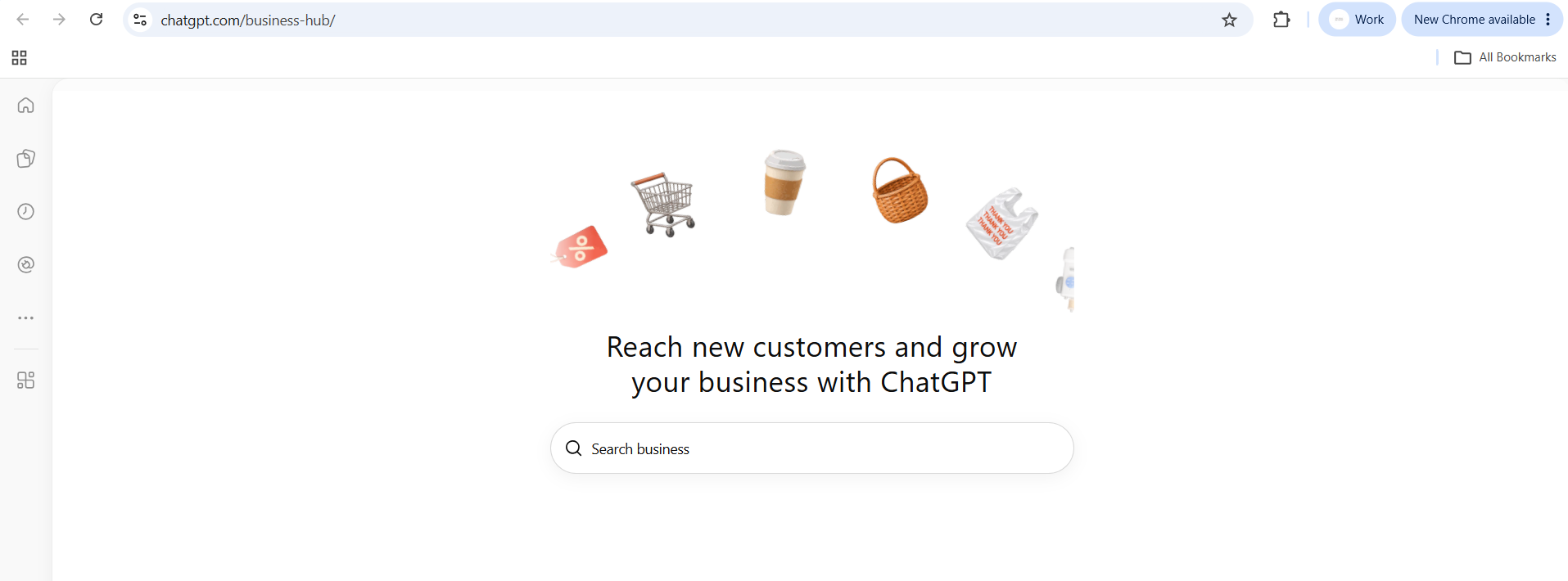
2. Search for your business by name and select the matching listing.

3. Confirm the ChatGPT account you want to use to manage the profile. You’ll need to be the business owner or authorised to act on its behalf.
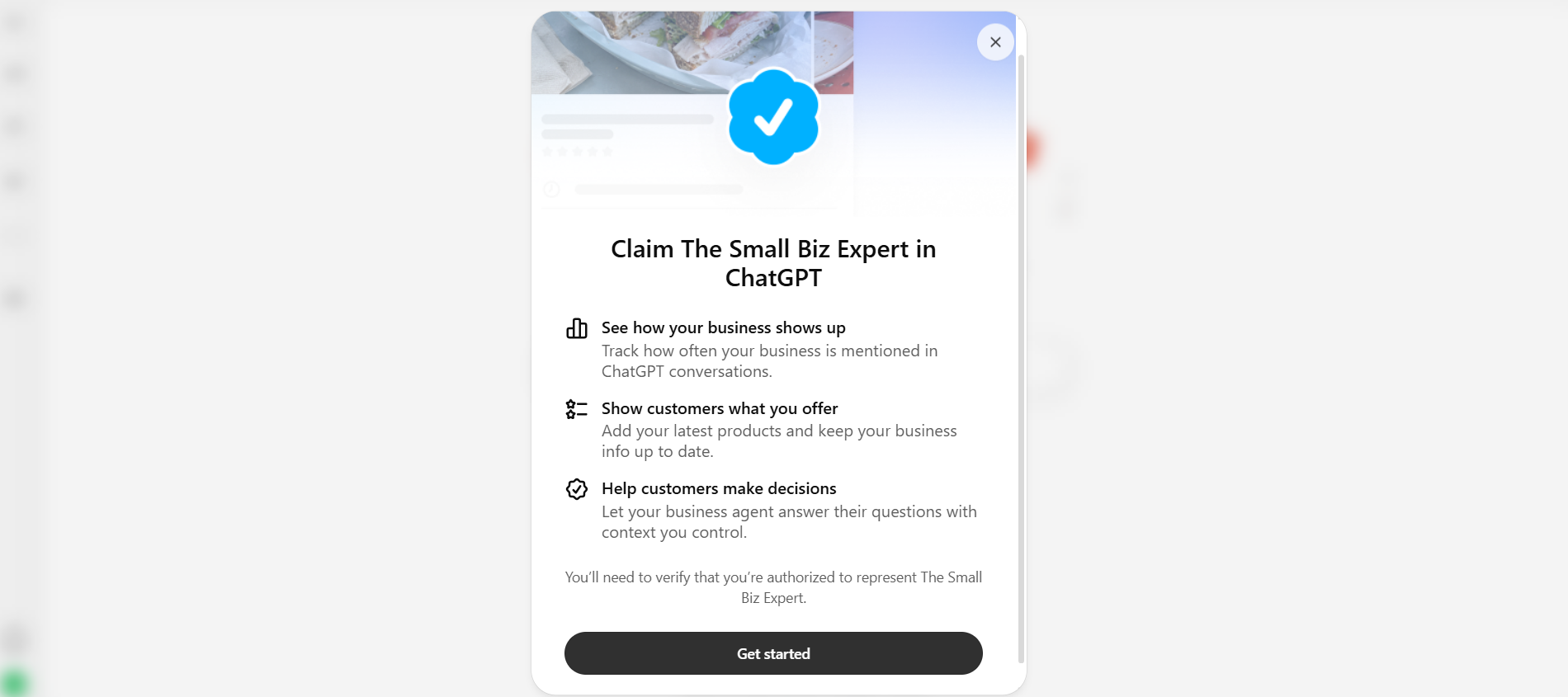
4. If you’re offered a verification method, follow the prompts. If you see a waitlist, register your interest and wait for an email telling you when you can continue.
If you can’t find your business, look for an option to add it. This is available to eligible online businesses.
Step 2. Verify your claim and your identity
There are two checks. The first confirms your connection to the business. The second confirms your identity and lets you publish profile updates and see your Insights.
For the first check, use whichever option Business Hub offers you .
• Business phone. Request a code by text or automated call and enter it in Business Hub. This will use publically available information, so you will need to have a business phone number on your site/public listings.
• Business email. Request a code and enter the one sent to the email address shown.
• Website domain. Add the TXT record ChatGPT gives you to your domain’s DNS settings, then return to Business Hub and select Verify domain. If your web developer or IT provider manages your DNS, they can add it for you.
• Shopify. Connect Shopify, sign in to the store you’re claiming and follow the prompts.
OpenAI will email you with a decision once it has reviewed your claim, or get in touch if it needs more information.
Next, open the Business tab, select your profile and look for Complete verification with Persona in the overview. Select Verify and follow the prompts. You may be asked for photo ID, business registration details and evidence that you’re authorised to represent the business.
If you trade under a different name, use the name on your registration documents where the form asks for your legal business name. The blue verification tick appears on your profile once OpenAI approves this check.
Note that you will not be able to update your profile information without this verifcation.
Step 3. Edit your ChatGPT business profile
Once both checks are approved, go back to Business Hub, select Business and open your profile - click Edit Business info (on the right hand side) to update your profile
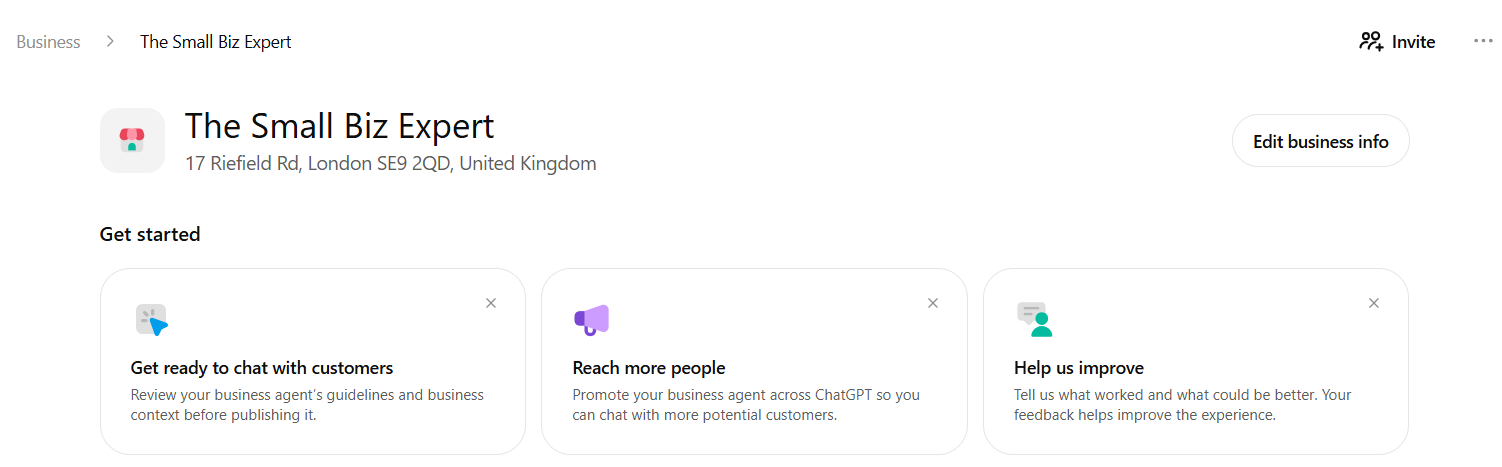
From there, you can update your website, description, product or service category, logo and cover photo. Retailers can also update delivery and returns information. OpenAI reviews and publishes changes, so they can take time to appear.
I’d start with the description. Read it as someone who’s never heard of you. Can they tell what you do, who you do it for and where you work? “Google Ads management and training for UK businesses and in-house marketing teams” tells a potential customer more than “We help ambitious businesses grow.”
Then try those two questions from the start again. Check whether the details ChatGPT gives about your business are accurate, and use Insights to see whether people are clicking through to your website.
OpenAI’s guide to setting up your business on ChatGPT
https://help.openai.com/en/articles/20001635-setting-up-your-business-on-chatgpt